Web Development - Written by Ahmer Tahir
How To Install, Update And Setup NodeJS On Linux
Introduction
In this Blog, we will see How you can install, update and Setup Nodejs On Debian Based Linux system. Updating Npm is also necessary which you will be able to do in the command given below. In our case we will download Nodejs v18.12.1. You can visit Nodejs.org and see the latest version.
Node.js is an open-source, cross-platform, back-end JavaScript runtime environment that runs on the V8 engine and executes JavaScript code outside a web browser, which was designed to build scalable network applications.
Steps you have to follow:
In order to complete this guide, you will need
- Install Nodejs Base package
- Download Nodejs Latest Version
- Unzip Downloaded Nodejs File
- Copy Unziped Files in System
- Update NPM Package
Prerequisites
In order to complete this guide, you will need:
- Basic Knowledge of Linux
- Process Tested On Ubuntu and Debian Based System
- Base Nodejs package will install Nodejs 10 which is too old
- You must be a Sudo/admin user to make changes
Step 1 — Install Base Package
Now will install Nodejs and supporting packages using the following command. It will Install Nodejs ~10 version:
$ sudo apt install nodejs xz-utils wget tar -y
Now you have to check the installed Nodejs version with the following command.
$ node -v
Step 2 — Download Nodejs Latest Version
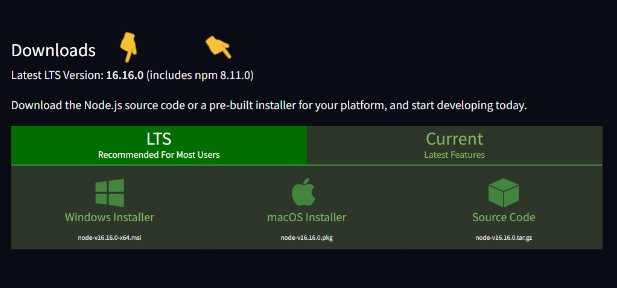
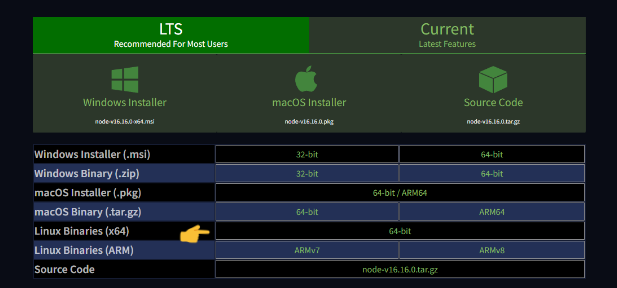
Go to NodeJs Website and check for the latest version. As mentioned in the image, replace the version numbers like 18.12.1.
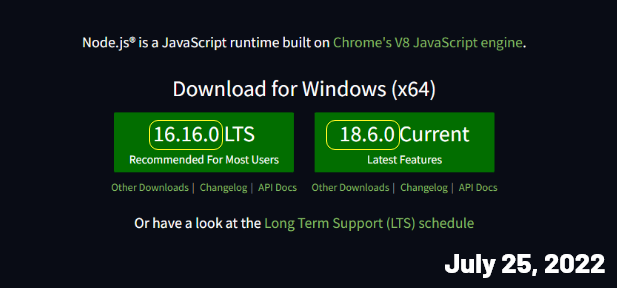
Go to NodeJs and Download Linux Binaries x64 Directly or use the command given below:
$ wget https://nodejs.org/dist/v18.12.1/node-v18.12.1-linux-x64.tar.xz
Step 3 — Unzip Downloaded File
Now in this step, we will unzip the file using tar. Replace 18.12.1 with your downloaded version.
$ sudo tar -xf node-v18.12.1-linux-x64.tar.xz
Step 4 — Copy Extracted Files in System
Now in this step, we will copy Lib, Bin, Include and Share folder files to the System
$ sudo cp -r node-v18.12.1-linux-x64/{bin,include,lib,share} /usr/
Step 5 — Update NPM Package
Now in this step, we will update the npm package with the node itself. Check version here Nodejs. As shown in the image below, the Nodejs version that I installed, comes with NPM 8.19.2. Use the command below to update it.
$ sudo npm install -g npm@8.19.2
Now check versions using
$ node -v
$ npm -v